Showing posts with label How To. Show all posts

How to Report on Facebook about any Offensive Post and Fake Profile?

- 06:15 0 comments
The Facebook group is a nice approach to meet with new people, discuss on various topics. We can manage Facebook groups according to friends, family, and business separately.

But recently I have seen some people use these groups for spamming. People with fake profile post spam links, abusing special community phishing links, and pornography links etc.. and most of Facebook users don't know how to deal with this post, as a result they start commenting embarrassing and abusing things. Today, I am about to show how to stop or remove these offensive post and comments and get rid off fake profile by reporting it to admin of that group or making report to Facebook as well. 
It may take few minutes to some days to review but generally Facebook review your report within 24 hours (on my experience). You can see what action has been taken on your report on Support Dashboard listed in Settings.

How to report inappropriate Post ?
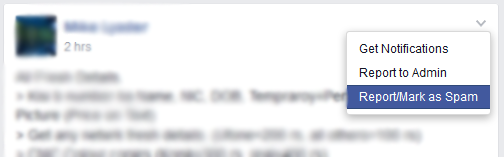
  1. Drag your mouse at the top right corner of the post, there you will see a down arrow click it, from drop down menu select how you want to report.
  2. Follow the directions to report.

From the pop window choose the matter with post then continue
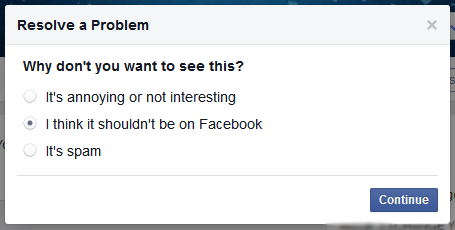
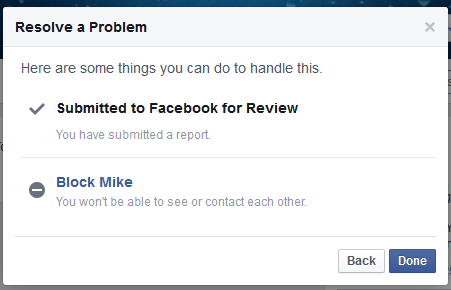
According to chosen possibility there may be another list, to point the exact problem then continue and submit ti Facebook for review.
How to Report Fake Profile or if your Friend Profile Hacked?
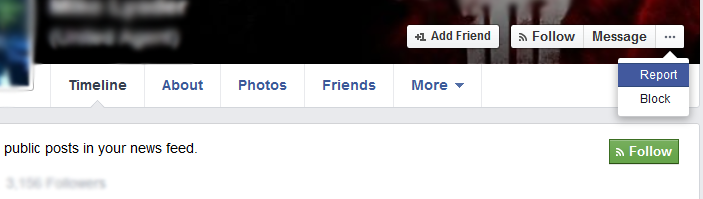
  1. Go to the profile
  2. Click on the cover photo and choose report
  3. Follow the on-screen directions to report.

How to Report offensive Comments?
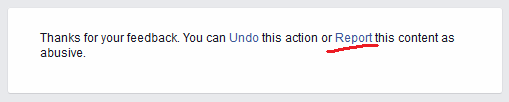
  1. Click on cross button (x) and select Report
  2. From pop up window follow the on-screen directions to file a report.


NO, Facebook say that Don't worry, your report is anonymous. We don't include any information about the person who filed the report when we reach out to the person responsible.

By these method you can Report any offensive or spam post, comment, page, group, profile. Below there few helpful links on safety:
Reporting a Hacked Facebook account

For more info. see infographic on Facebook reporting

So report and build your and your friends Facebook atmosphere safe from spam and violence.
Don't forget to share with your friends.
Continue reading →

Enable God Mode in Windows 7 & 8

- 12:45 0 comments
You must have heard God Mode in the gaming world. But God Mode in Windows? what is it? Actually it is a folder that lets users to access all control panel settings in a single window.

By this you can customize your settings and explore hidden controls in the operating system. Enabling God Mode in Windows 7 & 8 is very easy. Just follow below step and get full access in single click

1> Right click on Desktop
2> Select New > Folder
3> Now Rename the Folder to the following
GodMode.{ED7BA470-8E54-465E-825C-99712043E01C}  You will notice change in folder icon like below

Now you can open the folder and access various known-unknown control options in single window.

Continue reading →

Use Pen Drive as RAM to Boost your System

- 02:05 0 comments

We all know the processing speed of any application/task depends on your system RAM (random access memory). Now a days many programs take lots memory during operation and slow down your system speed. For instant ready-boost you can use your USB drive as RAM. When you increase your RAM it makes equal to speed of the system.
Make your pen-drive work as ready-boost in few steps.

For Windows 7 & 8:

1. Insert your USB Drive
2. Format it
3. After formatting it, right-click on your USB drive
4. Select Properties

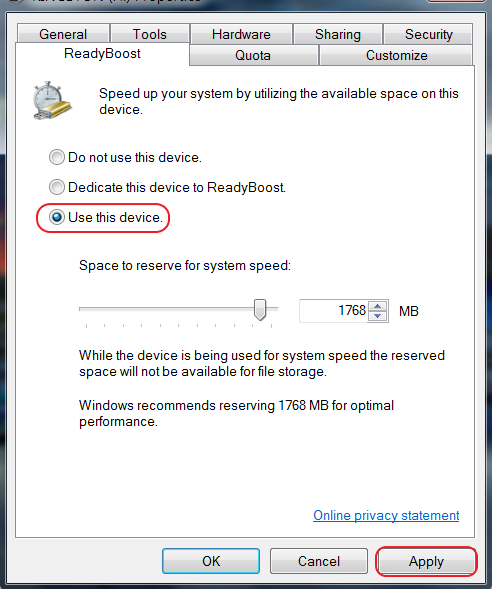
5. Click on ReadyBoost tab

 
6. Now click on use this device
7. Now move the slider to the maximum size
8. Click
Apply and OK
Now restart your PC and you are ready to use USB Drive as RAM in your PC.


For Windows XP:

1. Insert your USB Drive
2. Right Click on My Computer
3.
Select Properties  
4. Click on system properties
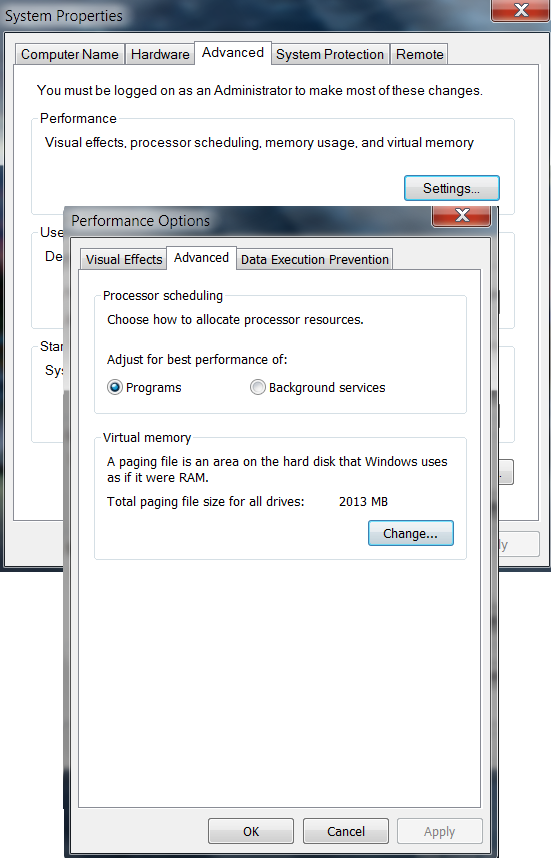
5. Click on Advance Tab


6. Now in performance click on Settings
7. Now click on Advance and then on Change
8. Now select your USB drive, that you want to use as RAM
9. After selecting your USB drive, click on Custom size

10.Now Change this limit according to your Pen Drive limit
11.Click on Set button and click on OK.

Restart your computer for the changes to take affect & enjoy.

Please Note: 
  • Do not remove the USB. It'll crash your system.
  • Don't think if you use 4GB/8GB USB drive it will act as 4GB Ram. It just increase the performance of system.
Continue reading →

How to Password Protect your Pendrive without any Software

- 09:12 3 comments
We all know the importance of USB stick. It is the one of the easiest way to share or transfer your files, data between computers. But what if your pen-drive having some secret data or having files which you don't  want to get checked by any other person. 
For these types of situations you need to lock your pen-drive with password. On internet lots of paid as well as free software available to secure your pen-drive. But today I'm going to explain you that how you can password protect your pen-drive without any software.

Procedure To Password Protect (Win7 & Win8)
  • Insert your USB drive to computer
  • Click on Start  
  • In 'Search programs and files' box, type Bitlocker Drive Encryption
  • Now click it to open. You will find your pen-drive in last and click on Turn on Bitlocker
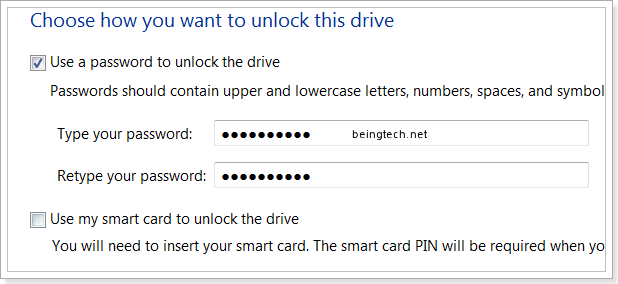
  • Select password  to unlock your pen drive
  • type your desired password

  • Click Next
  • Choose  save the recovery key to a file
  • You can also print recovery key

  • Choose the safe destination for recovery key because in case you forgot your password it will help you to unlock your USB
  • and then tap Next.
  • Then click on Start Encrypting
 
It may take a few minutes in Encrypting depending upon size of pen-drive.
You can check it by removing and again re-inserting the pen drive.The System will ask you to enter the password to access the data.
Now your all data remains safe. Also in case your pen drive is lost or gets stolen then also no one can use it without password. 

If this tutorial helps you in any way, then please take 5sec. to share with your friends.
Continue reading →

Make Animated GIF from YouTube videos in few clicks

- 10:38 0 comments
Have you just watched any cool video on YouTube and want to make animated GIF to use on your forum, website or on your phone. But don't know how to Photoshop or you just don't want to use Photoshop. Then you are at the right place, today I will tell you some simple method to create animated GIF images with few mouse clicks.
Animated GIFs are one of the most popular image styles to get attention on any web page or on any cellphone. A GIF file, simply is an image container that is capable of holding multiple images that cycle at a given time.
People use gif image on various forums, Google+, MySpace and also as avatar. Many of us use animated images on our mobile phones as screensaver etc.

Method 1:

Using Google chrome extension
It  is the easiest way to save a YouTube video or any HTML video as a GIF image.
1> Install this MakeGIF Video Capture to chrome
2> Play your video on youtube or web page that has embedded YouTube or any HTML video you want 
3> Click on  MakeGIF Video Capture button 


4> Click the Start button. When you are done, click Stop and a GIF will be generated. 
Under capure settings you can also customize size, capture FPS, frames, quality of gif image you would like to.


You also have an option to add overlay text to GIF or reverse the animation (under Frame option).
 5> Click Save GIF to download your gif image.

Method 2:
Using Online tools 
1.  YT2GIF

Just visit the website and put the URL of the YouTube video from which you want to make a GIF. 

 2. imgflip

It is also free service but require signup to convert you tube video in animated gif. You can also upload video (mp4 format) to convert it gif image.


Don't forget to share...
You would also like to know how to Share Animated GIF Pictures on Facebook
Continue reading →

How to view inside any YouTube Private video without sign-in

- 12:27 4 comments
As you all know YouTube is the best site to share videos. Over 35 hours of video being uploaded to YouTube every minute. Some of videos are private which can only viewed by uploader and only some you-tube user which are selected by uploader. Also there many age restricted videos which require Google signing to view that. But if you don't have a Google account (which could be not possible Smiley) or some time if don't want to sign in so, here is trick to view inside private video.
For example, here’s a private video – youtube.com/watch?v=FkTSUqPqsGE
(There’s nothing interesting inside except its private nature uploaded by lobnol.org)

Trick 1 
Preview YouTube Videos as Thumbnail Images before watching
See YouTube videos as thumbnail images before loading them. It will help to verify whether the video is the one that you are looking for or not.
This method is really useful for those who have limited data plan or slow connection speed.It helps you helps you save bandwidth and time.

1. In the URL, find the Video ID, which should be something like this (Text in Red is the ID)


2. Now you can use this ID in the following URLs to get three frame stills
  • Image 1: http://i.ytimg.com/vi/Video ID/1.jpg
  • Image 2: http://i.ytimg.com/vi/Video ID/2.jpg
  • Image 3: http://i.ytimg.com/vi/Video ID/3.jpg
Now copy above url & replace video ID

Watch full Video without sign-in [may not work for Private video]
Now here has the real hack trick comes. To view any restricted video which require google signing.
  • youtube.com/watch?v=FkTSUqPqsGE
  • Remove watch? from the url
  • Replace '=' with '/ '
  • Like- youtube.com/v/FkTSUqPqsGE
  •  Click Enter.
By this trick the video gets unlocked and able to see in full window without sign-in.
Please Note: This trick only for educational purpose, we understand YouTube Age-restricted content Policy and don't encourage anybody to use this trick.


If  you like this post you can say thanks by sharing it...
Continue reading →

Automatic Shutdown Windows PC with Timer

- 12:52 0 comments
You can find many software related to auto shutdown, but here in this post you will learn that how you can set the timer to shutdown your Windows PC without any software.


This post will help you when you are downloading any movie or a game which going to take hours to complete. And then, you need to sleep or suddenly you have to leave for some urgent work. Then this shutdown timer trick surely will help you.

First Method:
1. Right Click Mouse on your Desktop & Choose New > Shortcuts
2.  In the Pop window which says "Type The Location Of The Shortcut" type shutdown -s -t 3600


Remember 3600 is the number of seconds before Windows Shutdown  
For example- 60secs*60mins=3600secs, you can change 3600 with your need.
3. Type your shortcut name. You're done.
4. Now Double click the shortcut you recently created to activate.


How to Abort
1.To abort shutdown create another shortcut.
2. change Location Of the Shortcut to "shutdown -a" without the quotes.
3. Name the shortcut.Simply double click to abort.
You will get notification about shutdown cancelation.


Alternate Method:
1: Go to Start > Run
2: Type this Code "at 11:35 shutdown -s" without quotes & click OK.

Note: All The Time is in 24-Hours Format 
For Example: If you want to shut down at 9:00pm, you should type 'at 21:00 shutdown -s' without quotes.

How to Abort
Repeat the Step 1 & Enter the Code "shutdown -a" without quotes & click OK.

So, this is a simple and useful trick to schedule automatic shutdown in windows without use of any software.
If you find this trick useful then please share and feel free to ask any queries.
Continue reading →

Adfly & File sharing Sites Blocked, But Still Accessible

- 12:59 3 comments
You may have noticed the popular as well as annoying URL shrinking website adfly and their links no more accessible in India. Also some file sharing sites like uploaded.net(ul.to), depositfiles got banned.


Many Indians sites & blog owners use adfly service to generate some revenue by shrinking links. Department of Telecom (DOT) blocked these sites may be because they mostly use to distribute pirated download stuff. Well, there is no official announcement from Dept. of Telecom for blocking these domain.  
You probably do not know I have already shared about adfly & linkbucks bypassing method.
Is user can still use these blocked sites?
Yes, the user can still access these sites without any proxy/VPN, simply by using https:// protocol instead of http://

For adf.Ly publishers and users (showing as a blank page)
add https:// in any adf.ly link
or use v1.adf.ly (older version) & v2.adf.ly (new version) instead of adf.ly

Same as file sharing websites using https protocol like - depositfiles.com and uploaded.net also usable by using https:// instead of http://

keep sharing...
Continue reading →

How to Increase Likes on Facebook Page?

- 01:44 2 comments
Every day hundreds of FB pages created on various category. Creating Facebook pages are really very easy for any one, but getting likes on that page may be tough task. However, there are many free and paid sites on the Internet that promising to increase likes on your page. First I tell you the sites selling likes free are totally scam and I don't believe in buying likes for facebook pages.
People create Facebook pages not only for their products, websites, films and many other businesses purpose, but also create pages for fun, jokes Love poem-shayaris and yes to make some pocket money (I will tell you later about making money through  fb pages).
Celebrities, music, and products are the most popular categories among pages with more than one million fans.

Invite Friends and their friends
Inviting your friends is the first and important step for initial likes. An average Facebook user has 120 friends in his friends list. You should increase your friend list in order to invite more likes. Since facebook now added "Suggest page to Your Friends" feature. So, now call your Friends to invite their friends to like page. Suppose if you have 150 friend and you invite them all to like your page .Now let 50 friends liked your page (because liking your page by all friends not possible) and from 50 at least 20 friends will invite their 150 friend in this way you are able to get at lest 1000+ likes on your  Fb page.

Interesting Rich Content
Whatever topic of your pages is about to, you must include useful and interesting content post. Post some funny and shareable content, people love funny jokes and pictures. Also, they share As you know only 10% of the fans receive the Updates on their Wallas so, as much as fans comment and share your post will reach to more people.
Tag friends in pictures posts it will maximize your reach to more facebook fans.

No Cheap Posts
Don't try to make people fool from your post such as "comment 88 - see the magic" or "comparing relationship" and by repeating old posts. If you appear too spammy, your fans will be less likely to engage with your page, let alone share posts and updates with their friends. In fact, people can hide your updates from their news feed or can even unlike the page.
Think Globally and post valuable informative content which people like to share.

Promote Pages on others walls & comments
Like some pages who have 20k+ likes and comment your page link to their post & walls. Join some Groups having large no. of members. Promote your page on different category pages with some attractive script. 

Contact other Page Admins
Try to add other page's admins in your friend list.Or you can directly message them from their pages and ask them to promote your page in their posts. Also, you may ask for sharing each other post. 

Engage your Community
Install some app which engage your fans on page, like Booshaka app which let you know about top fan ,top commenters, newcomers of the week on your fan page. Announcing some Top fan of your page will encourage fans to participate event and sharing. You can also place some small contest like the person who share the page post most, will get some mobile recharge as reward and many other types of giveaway.
Booshaka says Every fan action in your community is valuable. These actions get shared with friends, family and followers and are powerful word of mouth recommendations and trusted referrals.

So, these are some small, but effective tips to increase genuine facebook likes. I recommended you to use Page Insights and analyze yourself page's growth, don't waste time & money in searching and buying likes.
If you like this post, then take 5sec. to share...because sharing is caring!
Continue reading →

Play Android Games on PC

- 22:56 1 comments
Everybody loves playing games on mobile, computer, etc. Apps and games are large part of Android phone largely used and are very popular in youth. Every person can’t afford to buy android smartphone. But playing android games is possible through PCs. Yes, you can play games like Temple Run2, Subway Surfer and other games on PC with the help of BlueStacks App Player.

Want to play Android games on PC ?

Follow below steps:
Download BlueStacks software from here (CNET) or from their website
Install it
Search for game in it & install
simply play the game.

How to install android game in BlueStacks? 
or 
I'm not able to search my game can i download from other sites?

Yes,You also can download games in APK file format from other website.
Copy paste your APK game file in Apps under Library
Open it with BlueStacks APK Handler
It will get install automatically and you will see a small shortcut.

Getting Graphic Card Error 2500 ?

Bluesacks currently doesn’t recognize your graphic card.It is possible your graphic drivers may need to be updated, Please update them and try installing again.

It is the major Problem with most of the users, might be possible you get this message during installation

SOLUTION
1. First uninstall if already installed Bluesack version
2. After uninstalling , Reinstall new version Bluesack version
3.Then Click on Start
4. Then click My computer
5. Then right click on My Computer
6. Click on Manage
7. select Device manager
8. Then goto Display adapter
9. Double click on version of your GPU
10. Then goto Drivers tab
11. Click on Update Drivers.
 

I hope this will solve your problem.It also has cool feature Cloud Connect, which let’s you send and receive apps between your phone and PC. You can play most of the android games with this app player but not all.
If you like this post then take 5sec. to share...because sharing is caring!
Continue reading →

How to Bypass Disable of Right Click?

- 01:02 0 comments
You might have across sites where you tried to right-click on a web page but got a pop-up message comes and say that the 'Right Click Block' or 'coping content is not allowed'. Sometimes you need to copy some text or picture but you even not able to select particular area. Generally to stop content get copied on other sites some of blogs use JavaScript to block the right-click activity. I have also used these type of script in past then i realized it doesn't give full freedom to surf the webpage and resulting loss of visitors therefore i removed that. Most websites use these type of JavaScript to protect images, hiding parts of a webpage and for some security purpose.
# JavaScript is a scripting language designed primarily for adding interactivity to Web pages and creating Web applications.
If user found something useful text line on any webpage & want to capture some text just for future reference but he can't, in such blog/website how to make this possible?
This is not tough task you just have to disable JavaScript in your browser.

 For Mozilla Firefox:
  •  From menu bar, click on Tools
  •  Select  Options
  •  In Options window, switch to Content tab
  •  Uncheck the option which says 'Enable JavaScript' and click on “OK”.

For Google Chrome:
  • Click on the Chrome “menu” button (on the top right corner) and select Settings.
  • From the “Settings” page, click on Show advanced settings…
  • Now under Privacy, click on the button Content settings... button
  • Under the JavaScript, select the button saying 'Do not allow any site to run JavaScript' and click on Done
For getting access of webpage which have any restriction by JavaScript, just disable it by above methods and reload the that page. Now you are able to select content as well as free to right-click on the page.

Please Note: JavaScript is important language & use by almost every blog/website. Enable the JavaScript after your work done, otherwise you will not able to see & perform other functions.
Continue reading →

Transfer large files on facebook through Pipes

- 11:16 1 comments
Hi Friends, 
We all use Facebook almost daily sharing are thoughts, pictures and many more but some time we need to share or send some kind of file to our friends like some document,PDF, video etc. since Facebook allow to share up to 25 mb that too in groups. But now we have an app called PIPE by which any facebook user can send large file upto thousand of MBs.

Yes PIPE is a new app launched last week helps to transfer large file instant easily up to 1GB through virtual green pipe. Remember Super Mario Bros game where you can travel through some pipes to complete the stage quickly.Pipe also look like same in its pictures, drop your file in pipe and your friend will receive on his computer in real time.
Just log in your FB account
click on https://apps.facebook.com/pipeapp/

Select friend to send file

Drags and drops or you can click on pipe to select the file 


The other person doesn't need to have app, he/she will receive a notification. If your friend offline then file goes in locker which can store up to 100 MB. There is no limit for lockers available for each user. 


Files sent via Pipe will not save on Facebook, they travel directly between computers using Adobe technology.Overall, this is a great app easy to use allowing FB user to send music, large documents, video and pictures. Hoping it will launch soon for mobile phone also.
If you like this post please share..,and do comments below is pipe new helpful app.
Continue reading →

Trick to Hide/Remove Your Last Name on Facebook

- 14:05 5 comments
We all know that Facebook is a community where people use their real identities. Facebook doesn't allow anybody to make scam or fake profile. For making FB user to connect people socially safe, it always asks first & last name yours. No one is allowed to hide/remove their last name, but here I'm going to reveal the trick by which you can remove your last name from existing Facebook account.
Facebook allow some countries like Indonesia to have only first name because most of the people on Indonesia don't have last name. By making some internet settings, we can also single name on FB. You first need Mozilla Firefox browser on your PC which I suppose you already have.

Now just follow below steps:

1. Change your Firefox Browser Proxy Manually 
Go To Tools > Option >  Advanced >  Network > Setting >Manual Proxy Configuration >
put any Of the bellow proxies  
Proxy: 
202.152.156.210
27.111.38.253
202.148.14.92

Port: 8080
or you can get fresh Indonesia proxy from here 
Search for a proxy in “Indonesia” with Port no. “8080″ as shown below
2. Save Settings

Note: Open your facebook account before changing proxy, if your account is not opening after changing it.
3. Now it's time to open your Facebook Account and Go to Account Settings.
4. Change your Language to Bahasa Indonesia.

5. Then simply remove your last name then Save it.
6. Switch back to English(US) language.
After doing all step remove proxy & switch to system proxy.
Now you have only single name account you can amaze your friends by this trick.

 Proof


If you face any problem in settings feel free to ask.
Must share and Enjoy....

Note: I'm not much pretty sure, but since we're not allowed to use a single name FB account, there is a chance to get blocked for some facebook features. But you can try at once.


Incoming searches:Use facebook without showing last name,how to use single name on facebook,how to remove Your Last Name on Facebook,Trick to Hide/Remove Your Last Name on Facebook ,Trick to Hide/Remove Your Last Name in facebook,how to remove last name from facebook,how to remove my name from facebook,remove name from facebook message,how to remove name tag on facebook,how to remove alternate name on facebook,how to change last name on facebook,no last name on facebook,facebook how to change your name,can i change my name on facebook,trick to hide last name on facebook,
Continue reading →